Origin 2015 Features
Origin 2015 Highlights
The table below only lists some highlights of Origin 2015. To see more features in 2015, please use the navigation bar on the left panel of this page.
Origin Interface
JIRA | SUMMARY | DETAILS |
|---|---|---|
Find Metadata in Project | Sample OPJ to try: Choose menu "File: Open Sample OPJs: Analysis" Find in Projects Dialog
Menu and Context menu open Find in Project (F3)
Tooltip and Context menu for findings
| |
Project Explorer Improvement: Graph Previews in Project Explorer | Graph Preview When Moussing Over Extra Large Icons to Show Graph Previews Note:
| |
ORG-10413 | Project Explorer Improvement: Folder Comments | Project Explorer Folders now support comments just like books or graphs. The ability to dump folder tree with descriptions has also been added to the pe_dir X-Function. The following new variables were added to pd_dir: 1. "recursive" for searching subfolders. 2. "display", only useful when recursive=1. It has 3 options: tree, tree with description (for folder, it is Comments; for window, it is LongName), and flat (separate with CRLF) 3. "sensitive" for case sensitive. |
ORG-11067 | Project Explorer Improvement: Comments tooltip when Moussing over Folder/Windows | Tooltips to Show Comments from Folders and Windows Tooltips to Show Notes Window Contents |
ORG-7727 | Project Explorer Improvement: Show/Hide Column context menu | Details view in PE is now similar to Explorer and right-click will allow easy control of which column to display. You can now also show Name column together with Long Name and Short Name. |
ORG-11432 | Project Explorer Improvement: In-Place Edit of Comments, Long Name, Short Name | Support in-place edit of Name, Long Name, Short Name and Comments columns in PE.
Edit both short name and long name in in-place edit mode of Name column.
|
ORG-11150 ORG-10819 ORG-7727 | Other Improvements in Project Explorer | Bold Active Window Line Easy to tell which window is active. Follow Windows Text Sorting Criteria In the past, sorting only takes care of numbers at the end of name. Now even names like Graph10a, Graph1a, Graph2a will sort properly. Duplicate Window in PE |
ORG-9889, ORG-10413, ORG-9889 | Window/Folder Properties dialog Improvement | Meta data support for PE folder (Comment, User Tree) Right click folder and choose Properties to add comments and user tree
Window Properties dialog with more common options like user variables
|
ORG-10962 | Sheet Comments | When right click sheet name, we used to have a Comments... context menu to edit comments. We have changed it to Name and Comments... context menu. It opens a new dialog to edit Short Name, Long Name and Comments. When hover over sheet tab, Short name, long name and comments all show as tooltip. It also indicates what the display name is in bold in tooltip. |
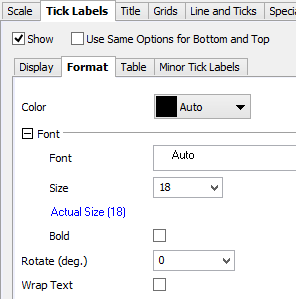
ORG-10198,ORG-9668, ORG-10524, ORG-11534, ORG-11132, ORG-104, ORG-10180, ORG-10277, ORG-10312 | Axis dialog Improvements | Better Layout of the Axis Dialog
Second level Tabs on Tick Labels tab
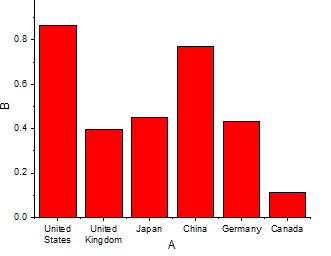
Wrap Tick Labels
Customize Multiple Axes Together E.g. highlight both Horizontal and Vertical icons on the left, Set both Scale Type to Log10 together.
Control Line and Ticks Display separately
Customize individual special ticks
Custom scale formula for 3D OpenGL axis |